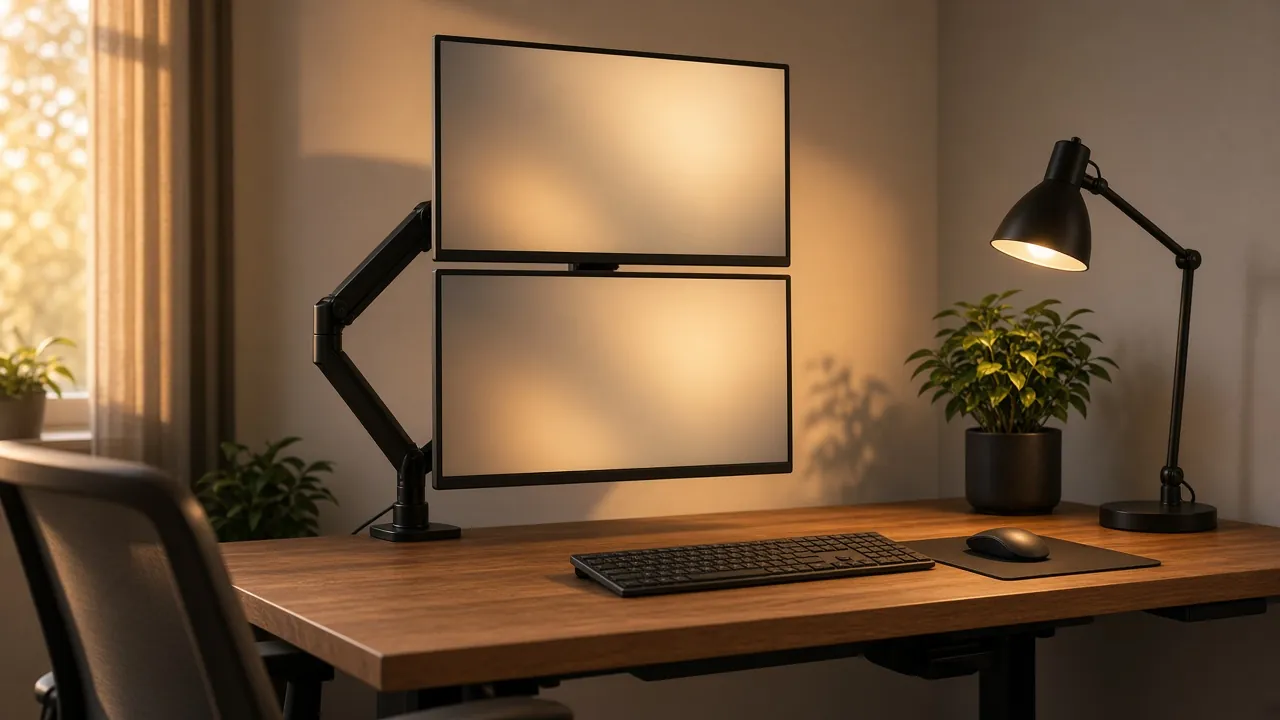
In the evolving landscape of home office setups, a single monitor often feels like a relic from a bygone era. For many, two screens have become the sweet spot—providing ample digital real estate without overwhelming your space. But how you arrange those two screens can make a world of difference. While side-by-side setups are common, the dual-monitor vertical stack is rapidly gaining traction among productivity enthusiasts, coders, writers, designers, and anyone who thrives on vertical information flow. This deep dive will explore everything you need to know about transforming your home office desk into a vertical display powerhouse, ensuring both peak ergonomic comfort and a significant boost in your daily output.
Disclosure: Our guides are researched from the public sources we cite; we don't carry out hands-on product testing.
Why Go Vertical? Unpacking the Advantages of a Stacked Monitor Setup?
Before we explore into the 'how,' let's understand the 'why.' Why choose a vertical stack over the more traditional horizontal dual-monitor setup?
- Ergonomic Superiority (When Done Right): One of the most compelling reasons is ergonomics. With a vertical stack, your primary monitor is typically positioned at eye level, with the secondary monitor directly above or below. This reduces the need for constant horizontal head turning, which can strain your neck and shoulders over time. Instead, you're primarily moving your eyes up and down, a more natural movement for many.
- Enhanced Vertical Workflow: For tasks involving long documents, webpages, code, social media feeds, or timelines, a vertical arrangement is a major improvement. Imagine scrolling through an entire document on one screen while referencing research on the other, both without excessive side-to-side movement. This is particularly beneficial for writers, developers, data analysts, and researchers.
- Space Efficiency: In compact home office spaces, a vertical stack can actually save valuable horizontal desk real estate. You might be able to use a narrower desk or free up space for other peripherals like a drawing tablet, microphone, or desk plant.
- Reduced Neck Strain for Specific Tasks: If your work involves a lot of scrolling or following single columns of information (like a chat window or a music playlist), having that information on a vertically oriented screen minimizes side-to-side head movements, often leading to less neck fatigue over prolonged periods.
- Aesthetic Appeal: Let's be honest, a well-executed vertical stack looks incredibly sleek and professional. It gives your desk a modern, sophisticated feel that can be quite inspiring.
The Foundation: Choosing the Right Monitors for Your Vertical Stack
Not all monitors are created equal for a vertical stack. The display characteristics you'd look for in a horizontal setup might differ slightly here.
1. Size Matters, But Not Always Bigger is Better
For a vertical stack, the sweet spot for monitor size is often between 24 and 27 inches. Going much larger, especially for the top monitor, can force you to crane your neck excessively to view the top edges, negating the ergonomic benefits.
- Primary Monitor (Bottom): This should ideally be at eye level. A 27-inch monitor works well here for most people.
- Secondary Monitor (Top or Bottom, Depending on Preference): A 24-inch or 27-inch display is suitable. If the top monitor is an ultrawide turned vertically, that presents its own set of considerations (more on that later).
2. Bezel-Less Design for smooth Transitions
Thin bezels (the borders around the screen) are crucial for a visually smooth transition between your stacked monitors. The thinner the bezel, the less distracting the gap between your screens, making it feel more like one continuous display.
3. VESA Mount Compatibility is Non-Negotiable
This is perhaps the most critical spec. Both monitors must have VESA mounting holes (typically 75x75mm or 100x100mm) to attach them to a monitor arm. Without VESA compatibility, a vertical stack is impossible with most modern solutions.
4. Panel Type: IPS for Wide Viewing Angles
An In-Plane Switching (IPS) panel is highly recommended. IPS displays offer superior colour accuracy and, more importantly for a vertical stack, excellent wide viewing angles. This means that even if you're looking slightly up or down at one of your screens, the colours and clarity won't distort as much as they might on a TN panel.
5. Resolution & Refresh Rate
- Resolution: For 24-27 inch monitors, 1080p (Full HD) is standard, but 1440p (QHD) offers significantly more screen real estate and sharper images, which is fantastic for productivity. If your budget allows, aim for QHD.
- Refresh Rate: While gamers prioritise high refresh rates (120Hz, 144Hz, etc.), for productivity, a standard 60Hz or 75Hz is perfectly adequate. Don't overspend on high refresh rates if your primary use is work.
The Crucial Connection: Choosing the Right Monitor Arm for a Vertical Stack
A sturdy, adjustable monitor arm is the backbone of any successful vertical stack. This is not an area to cut corners.
1. Dual Monitor Arm vs. Two Single Arms
- Dual Monitor Arm (Vertical Stack Specific): Many manufacturers offer arms specifically designed for vertical stacking. These often feature a single pole with two adjustable arms attached at different heights. This is often the most stable and aesthetically pleasing solution.
- Two Single Monitor Arms: While possible, this can be trickier. You'd need to ensure both arms have sufficient height adjustment to position one monitor directly above the other without compromising stability or desk space. Make sure they can clamp to the same desk edge or through the same grommet hole without interfering with each other.
2. Clamp vs. Grommet Mount
- C-Clamp: Attaches to the edge of your desk. Ensure your desk is thick enough and sturdy enough to support the weight without damage. Check the maximum clamp opening of the arm.
- Grommet Mount: Requires a hole in your desk (or drilling one). This provides a more secure and often cleaner look as the mount goes through the desk itself.
3. Weight Capacity & Monitor Size Compatibility
Carefully check the monitor arm's weight capacity and maximum screen size it can support. Factor in the weight of both your monitors. Exceeding the weight limit will lead to sagging, instability, and potential damage.
4. Adjustability & Range of Motion
Look for an arm that offers:
- Height Adjustment: Crucial for ergonomic positioning.
- Tilt: To angle your monitors for optimal viewing.
- Swivel: To rotate your monitors horizontally.
- Rotation (Portrait Mode): Essential if you plan to ever orient one of your monitors vertically for specific tasks. While the stack itself is vertical, you might find some applications benefit from one screen being in portrait mode.
5. Cable Management
Good monitor arms include integrated cable management channels or clips. This is vital for maintaining a clean, clutter-free look, especially with two monitors. There’s nothing worse than having neatly stacked monitors with a spaghetti of wires dangling beneath them.
Ergonomic Deep Dive: Perfecting Your Vertical Stack Setup
Getting the physical setup right is only half the battle. Excellent ergonomics will ensure you can work comfortably and efficiently for hours.
1. The Primary Monitor: Eye Level is Key
Your primary, most frequently used monitor (typically the bottom one in a stack) should be positioned so that the top third of the screen is at eye level when you are sitting up straight with good posture. Your gaze should naturally fall to the centre of the screen without tilting your head up or down.
2. The Secondary Monitor: Optimal Viewing Angle
Your secondary monitor (usually the top one) should be angled slightly downwards towards your face. This reduces the amount of neck tilting required to view its content. If your primary monitor is at the bottom, your eyes should be able to move comfortably from your primary to your secondary screen with minimal head movement, primarily relying on eye movement.
3. Distance from Your Eyes
Both monitors should ideally be at arm's length from your eyes (roughly 20-30 inches). Adjust your desk and chair to achieve this distance while maintaining proper posture.
4. Chair and Desk Ergonomics
A vertical monitor stack relies heavily on your overall ergonomic setup. Ensure you have:
- An Ergonomic Chair: With good lumbar support, adjustable armrests, and seat height/depth.
- Adjustable Desk (Standing Desk): If possible, a standing desk is a fantastic complement. It allows you to switch between sitting and standing, further reducing static posture strain. When standing, ensure your monitors' height adjusts with you.
5. Lighting Considerations
Position your monitors to avoid glare from windows or overhead lights. Glare can cause eye strain and fatigue, especially with two screens to contend with. Consider investing in a good desk lamp or a monitor light bar to illuminate your workspace without reflecting on your screens.
Software & Settings: Maximising Your Vertical Workflow
Hardware is only part of the equation. Software settings can significantly enhance your vertical stack experience.
1. Display Arrangement in Your OS
Both Windows and macOS allow you to arrange your displays digitally to match their physical arrangement. Go to your Display Settings (Windows) or Display Preferences (macOS) and drag the virtual monitors to stack them one above the other. This ensures your mouse cursor moves smoothly between screens.
2. Scaling and Resolution
Ensure both monitors are running at their native resolution for the sharpest image. Adjust scaling (text and app size) as needed, especially if you have monitors of different sizes or resolutions. You might want slightly different scaling on your primary vs. secondary monitor depending on content and preference.
3. Monitor Calibration
For consistent colour and brightness, especially if you do any creative work, use a monitor calibrator tool (like a SpyderX or i1Display Studio) to calibrate both displays. This ensures visual consistency across your stack.
4. Third-Party Window Management Software
For Windows, tools like FancyZones (part of Microsoft PowerToys), DisplayFusion, or AquaSnap can be invaluable. They allow you to create custom snap regions, making it easy to organise windows precisely across your two stacked displays. For macOS, apps like Magnet or Rectangle offer similar snapping functionalities.
5. Utilising Each Screen Optimally
- Bottom (Primary) Monitor: This is your main workspace. Keep your core applications here—your word processor, IDE, main browser window, or design software.
- Top (Secondary) Monitor: Ideal for reference materials, communication apps (Slack, Teams), email, Spotify, social media feeds, or auxiliary tool palettes. It's excellent for things you need to glance at periodically without taking up space on your primary screen.
6. Portrait Mode for Specific Tasks (Optional)
Consider rotating your top monitor into portrait mode if your work involves very long documents, PDFs, or code. Many monitor arms support 90-degree rotation. You'll need to adjust the display settings in your OS to reflect this orientation.
Desk Considerations & Accessories for the Ultimate Vertical Stack
Your desk and the accessories on it play a huge role in the success of your vertical setup.
1. Desk Depth and Stability
While a vertical stack saves horizontal space, you still need sufficient desk depth. You need space for your keyboard, mouse, and enough distance for your eyes to comfortably view the monitors. A desk depth of at least 24 inches is recommended, with 30 inches being ideal.
Ensure your desk is stable. A wobbling desk will lead to wobbling monitors, which is incredibly distracting and can be a safety concern with a heavy monitor arm attached.
2. Cable Management Solutions
With two monitors, power cables, display cables, and potentially USB cables, organisation is paramount. Invest in:
- Cable Sleeves/Wraps: To bundle cables together.
- Cable Ties/Velcro Straps: For neat routing.
- Cable Trays/Spines: Mounted under your desk to keep cables off the floor and out of sight.
- Cable Clips: To secure cables along the back of your desk.
- Power Strip with Surge Protection: Mount it under your desk for easy access and fewer visible wires.
3. Ergonomic Keyboard and Mouse
Don't forget your input devices. A comfortable keyboard (mechanical or ergonomic membrane) and an ergonomic mouse (vertical, trackball, or contoured) are essential to prevent wrist and hand strain, especially during long work sessions with your perfectly aligned monitors.
4. Desk Mat/Pad
A large desk mat can unify your workspace, protect your desk surface, and provide a comfortable surface for your mouse and wrists. Choose one that complements your setup's aesthetics.
5. USB Hub / Docking Station
To reduce cable clutter and easily connect peripherals, consider a USB hub or a docking station. This can run a single cable to your laptop, handling video outputs, USB devices, and power charging.
6. Task Lighting
A good desk lamp or a monitor light bar will illuminate your workspace without creating glare on your screens. Position it to shine *on* your desk and keyboard, not *into* your screens.
Potential Challenges and How to Overcome Them
While a vertical stack offers numerous benefits, there are a few potential hurdles you might encounter:
- Initial Neck Adjustment: It may take a few days or weeks for your neck and eyes to adjust to the vertical movement. Be patient and take frequent breaks.
- Finding the Right Monitor Arm: Not all dual monitor arms are designed for true vertical stacking. Read reviews, check specs carefully, and look for arms with sufficient height adjustment on a single pole.
- Desk Stability: A heavy monitor arm coupled with two monitors puts significant stress on your desk. Ensure your desk is not flimsy and can bear the load without bowing or wobbling.
- Cable Management: With more screens, comes more cables. Dedicated effort and the right accessories are needed to keep things tidy.
- Ultrawide Considerations: While you could stack an ultrawide, it's often more challenging. An ultrawide turned vertically (portrait mode) is fantastic for document viewing but can be cumbersome if it's your only secondary screen as it's very tall. Stacking two regular monitors usually makes more sense.
Conclusion: improve your Home Office Literally and Figuratively
The dual-monitor vertical stack is more than just a cool-looking setup; it’s a strategic choice for enhanced productivity, improved ergonomics, and efficient space utilization in your home office. By carefully selecting your monitors, investing in the right monitor arm, meticulously arranging your ergonomic setup, and leveraging software to your advantage, you can transform your workspace into a highly optimised and incredibly comfortable command centre.
So, take the leap, stack those screens, and experience the vertical workflow revolution firsthand. Your neck, your eyes, and your daily task list will thank you for it.
Sources and further reading
Official and primary sources covering the topics in this article:
- HSE: working safely with display screen equipment: background on UK workstation and screen rules.
- College of Optometrists: background on eye health and screen use.
- NHS: back pain: background on preventing and managing back pain.
Frequently asked questions
Why Go Vertical? Unpacking the Advantages of a Stacked Monitor Setup?
Before we explore into the 'how,' let's understand the 'why.'
What should you know about the Foundation: Choosing the Right Monitors for Your Vertical Stack?
Not all monitors are created equal for a vertical stack. The display characteristics you'd look for in a horizontal setup might differ slightly here.
What should you know about the Crucial Connection: Choosing the Right Monitor Arm for a Vertical Stack?
A sturdy, adjustable monitor arm is the backbone of any successful vertical stack. This is not an area to cut corners.
What should you know about Ergonomic Deep Dive: Perfecting Your Vertical Stack Setup?
Getting the physical setup right is only half the battle. Excellent ergonomics will ensure you can work comfortably and efficiently for hours.
Related Articles
Last updated: 2026-04-25 · Fact-checked by editorial team
Content Attribution: All content on Home Office Desk Setups is original. External sources are attributed where applicable. Trademarks belong to their respective owners.